Using Images

The img tag

Basic syntax for the img tag

The img tag is the simplest and most common way to display an image in an html page. Smiley face It requires a src attribute, which indicates where the browser will find the image, and an alt attribute, which provides a textual version of the image for screen-readers.

img src="path/to/image.jpg" alt="My image"
  1. Add an img in the first paragraph of this section. Use this src: https://wudesign.me/resources/using-images/images/smiley.jpg.
  2. Be sure to include the alt attribute, with a meaningful value.

An img element is, by default, an inline element, so it will wrap with other inline elements on the page.

Sizing an img

img tags can be sized with CSS. Like other elements, you can add an id, class, or other attributes as you see fit in order to assist with styling. Generally, it is best to set only width or height, not both. If you set only one, the browser will set the other automatically in order to maintain the aspect-ratio of your image source file.

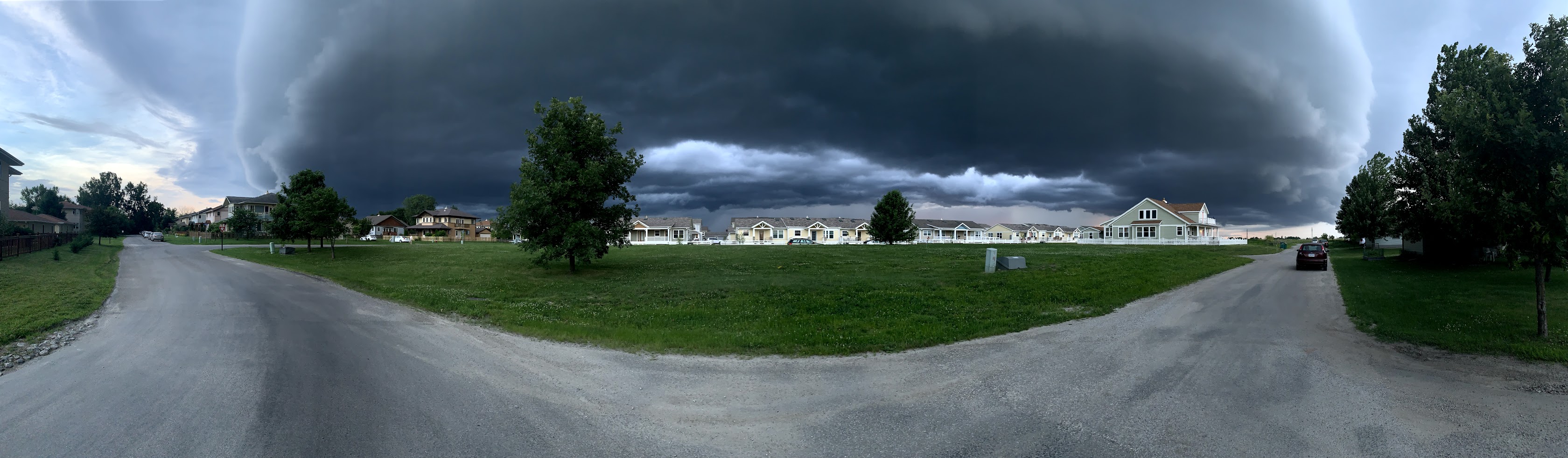
  1. Add an img below this set of instructions. Use src: https://wudesign.me/resources/using-images/images/shelf-cloud-wide.jpg.
  2. The image will be huge. So, add class="full-screen" to the tag, then use that class as the selector for a style rule that sets width: 100%; on the image.
Shelf cloud

Cropping an img

Sometimes your source image doesn't match the aspect-ratio of the space you need to fill. What if we want to put our wide image into a square? First, let's try just setting both width and height.

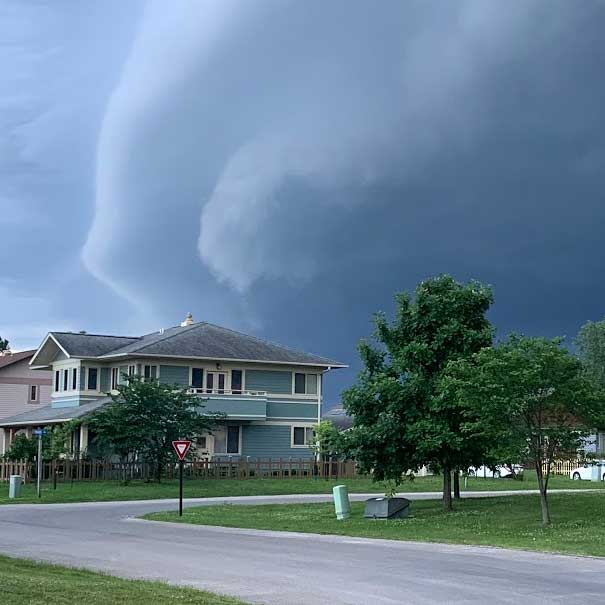
  1. Add another img after this set of instructions. Again, use src: https://wudesign.me/resources/using-images/images/shelf-cloud-wide.jpg.
  2. This time, add class="square" to the tag, and use that class as the selector for a style rule that sets width: 280px; height: 280px; on the image.
Shelf cloud

The image is stretched! Not what we wanted. We need to tell the image to be cropped, not stretched.

  1. On your .square ruleset, add object-fit: cover;

Now the image is cropped, instead of stretched. The cover value tells the browser to scale the image proportionally such that it just covers the entire area of the img tag, but no larger.

  1. On your .square ruleset, add object-position: left center;

The object-position value can have two parts, the first for the horizontal position, the second for vertical position.

Background images

Background image syntax

The img tag is useful when the image is part of your actual content, but it's often not ideal when using an image as a style element behind other content. CSS provides a mechanism for using images as backgrounds to other elements.

  1. Create a css ruleset with selector .background-image-example, and add this rule: background-image: url(https://wudesign.me/resources/using-images/images/shelf-cloud-vertical.jpg);

Shelf Cloud: A low-hanging, well-defined, wedge-shaped formation that occurs along the leading edge of a gust front in a thunderstorm. Shelf clouds most often form just ahead of intense lines of thunderstorms.

  1. For .background-image-example, set padding: 10% 5% 45% 40%;

Sizing and positioning background images

We can use background-size: cover; to scale the background image to fit its container.

  1. Set background-size: cover;
  2. Set background-position: center 20%;

Preparing images for the web

Selecting the right file type

A number of factors come into play when selecting which file type to use for a given image.

A comparison of image file types
jpg gif png svg
jpg smiley gif smiley png smiley svg smiley
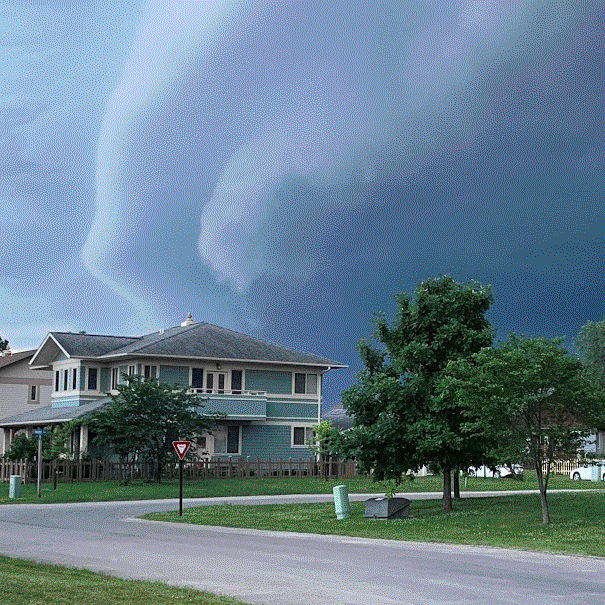
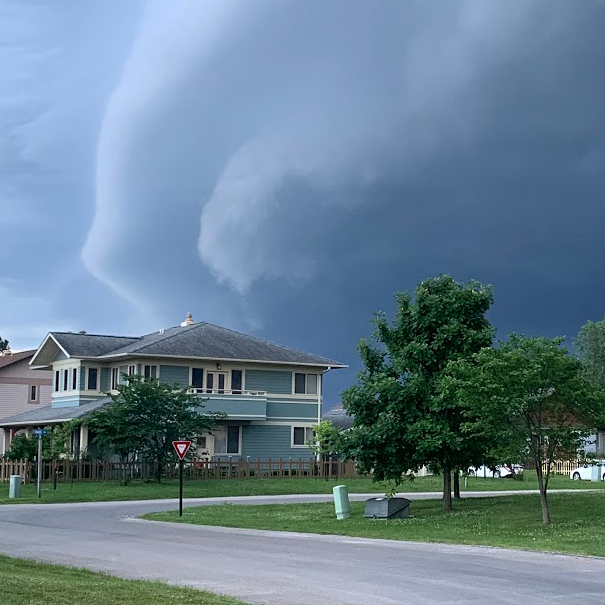
jpg shelf cloud 36KB gif shelf cloud 138KB png shelf cloud 422KB
Not applicable, SVG is vector only!

Managing file size (and therefore download time) for raster images

Image fidelity and file-size are linked. Both are a function of the number of pixels in the image, and the amount/type of compression applied.

First, decide what is the maximum width at which this image is displayed. An image wider than necessary will have a larger file size.

Second, decide how much compression to apply. This can be done using Photoshop's Export As feature.

  1. Create an images folder for this project.
  2. Use a photo of your own, or right-click and "Save Image As..." the wide-angle cloud photo above.
  3. Open the image in Photoshop, and use File > Export > Export as... to save a jpg version of the image.
  4. Save the image into the images folder you created.
  5. Add an img tag inside the figure element below.
  6. Create a style rule that sets this image to be width: 100%;
  7. Put the image's pixel width, compression setting, and resulting file size into the figcaption.
Shelf cloud
800px wide, 40% jpeg compression, 166KB